Jump to the TL;DR if you just want the summary of setting it all up minus the story.
Why host a model?
I like using the latest frontier class models for the hard stuff. I do not love spending their rate limits on "rename this variable" and "write the obvious boilerplate." So I decided to host a large language model (LLM) on my own hardware, free and off of rate limits: soak up the easy work locally, save the frontier credits for the work that needs them, and keep my data off some AI corporation's servers while I'm at it. This post is step #1: setting up the hardware.
Sourcing hardware during the RAMpocalypse
2026 is a brutal market for PC components. There's a massive AI-driven shortage of DRAM and GDDR which has made prices skyrocket. As of this post, a 32 GB DDR4 kit that used to cost about $50-$70 is sitting at roughly $200. Rather than get fleeced in a seller's market, I decided to just use hardware that I had lying around.
Enter my gaming PC. I built it back in 2020 during the pandemic restrictions. Back then I had all the free time in the world for gaming. It's mostly been collecting dust since my first son was born in 2022. The perfect candidate for my AI server.
The Specs
Originally the gaming PC had a GTX 1080 carried over from an even earlier build. Around 3 years ago I impulse bought a RX 6750 XT 12GB on a good sale and swapped it in. The RX 6750 XT is a fine mid-level card for 1080p and some 1440p gaming today. However, it is generally not a card that you'll see recommended for running LLMs locally.
That said, it's not a bad card for it either (with some caveats I will get to later). For inference, the most important factor is VRAM, because that's what determines what size of model you can hold. The 12 GB in my RX 6750 XT is enough to hold a real coding model, with extra room for context. I didn't set out to choose AMD over NVIDIA here. It's just what I had.
The rest of the box is nothing special. The CPU is a genuinely dated Ryzen 5 2600, but that's ok because it doesn't need to do much during GPU inference. It has 16 GB of DDR4 RAM. A bit tight since I also want to run orchestration processes on this machine, but it's fine given the sheer redonkulousness of RAM prices in 2026.
I did a fresh install of Ubuntu 26.04 since it's free, lean, fits the tooling, and I plan on mostly using it headless via SSH anyway.
Full spec table for the curious:
| Part | What I Have | Notes |
|---|---|---|
| CPU | Ryzen 5 2600 (Zen+, 6c/12t, 2018) | Adequate for now |
| GPU | Radeon RX 6750 XT 12GB (RDNA2, gfx1031) | Fine for now, but I'm keeping an eye out for deals on something like an RX 7900 XTX or RTX 3090 to upgrade |
| RAM | 16 GB DDR4 | Will upgrade when RAM prices come down |
The unsupported card problem
Here is where the caveat of my GPU comes into play. AMD's compute stack is called ROCm. This is their answer to NVIDIA's CUDA. There is a hardcoded list of supported GPU targets for ROCm, and your card has to be on it. My RX 6750 XT reports its chip target as gfx1031, which is not supported. The very similar chip in the 6800 and 6900 series cards is gfx1030, and that one is supported. gfx1031, the 6700 series, is not. Same architecture, one digit off, left off the list.
Note: ROCm's official supported-GPU list changes between releases, and gfx1031 support has been a moving target. Best to check for yourself since things may have changed since the time of this posting.
The usual workaround
There is a very simple workaround that a lot of people have reported success with on Linux. It basically tricks ROCm into thinking your card is supported. You install the GPU drivers and ROCm runtime as usual, add your user account to the video and render groups, and then spoof the GFX version to 10.3.0 like so:
export HSA_OVERRIDE_GFX_VERSION=10.3.0Vulkan: the alternative
Vulkan is a graphics and compute API that these cards support natively with no ROCm needed. I am using Ollama to serve models, which runs inference on the Vulkan backend no problem. The main downside is it's inference-only, meaning you can't fine-tune or train models. Since I'm only trying to serve an existing model for now, it's a non-issue for me.
Note: It's not that Vulkan is inherently incapable of training/tuning models. It's just that the typical training stack targets CUDA/ROCm.
Comparison: ROCm workaround vs. Vulkan (RX 6750 XT / gfx1031)
| Factor | ROCm (via HSA_OVERRIDE_GFX_VERSION=10.3.0) |
Vulkan |
|---|---|---|
| Setup | Needs the override env var to spoof the GPU target | Natively supported, no workaround |
| Reliability | Fragile: can fail to init; updates can silently break it | Stable; part of Mesa, survives kernel updates |
| Fine-tuning / training | Supported; the ML-native path (PyTorch-ROCm, vLLM) | Unsupported; inference only |
| Tooling | Richer (rocm-smi for monitoring) |
Lighter (radeontop) |
Verdict
For my use case (a mostly-headless inference box), Vulkan wins, and I'm not giving up much for it. The old assumption that ROCm is meaningfully faster has largely eroded: recent benchmarks put ROCm anywhere from ~10–20% ahead (mostly on prompt processing) to level with or behind Vulkan. On RDNA2 in particular, the generation the Vulkan backend was first tuned on, the two are close enough that speed isn't the deciding factor.
The goal of this project is to make AI-assisted workflows easier for me. I want to spend my time building cool things, not debugging why the latest update broke my hacky workaround. Vulkan just works, and keeps working across driver updates, which is what I want for an always-on server.
Setup
I started with a clean slate. A fresh install of Ubuntu 26.04 LTS Desktop. I went with desktop because I do have a monitor attached (set up at a desk in my basement), and will occasionally work from it directly using IDEs and such. But most of the time it will be connected to and used headless via my MacBook Air.
Step 1: The Vulkan graphics stack
Update the system and install the Vulkan userspace drivers and a couple of diagnostic tools:
sudo apt update && sudo apt full-upgrade -y
sudo apt install -y mesa-vulkan-drivers vulkan-tools radeontop
Confirm the card is visible to Vulkan:
vulkaninfo | grep -i deviceName
# should print "AMD Radeon RX 6750 XT" (mine shows RADV NAVI22)
radeontop is the tool we'll use later to prove the GPU is actually doing the
math, so it's worth installing now.
Step 2: Install Ollama and pull a model
Ollama is the easiest way to serve a local model. Install it with one line:
curl -fsSL https://ollama.com/install.sh | shOn this hardware Ollama installs as a systemd service. During the first run, it resolves the Vulkan backend, drops the unsupported ROCm device, and loads onto the discrete RX 6750 XT with ~11.6 GiB of usable VRAM.
Note: When Ollama starts, it will show a warning that it dropped the ROCm device. This is expected on a
gfx1031card. It realized that the GPU doesn't support ROCm and fell back to Vulkan. That's what you want.
Picking a model for 12GB of VRAM
Now that Ollama is set up, it's time to choose a model for it to serve. This is where the VRAM budgeting gets real.
My VRAM limitation rules out the current flagships: qwen3-coder:30b (~19GB), Codestral 22B (~13GB), and anything 24B+ dense. What's left is still a solid field of 7–16B coders.
| Model | Params | ~Q4 size | Context | Trade-off |
|---|---|---|---|---|
| qwen2.5-coder:14b (chosen) | 14.8B dense | ~9GB | 32K | Best dense code quality in the tier; native tool-calling + fill-in-the-middle. Non-reasoning, so it's fast. |
| qwen2.5-coder:7b | 7B dense | ~4.7GB | 32K | Same family, more headroom/speed, lower ceiling. |
| qwen3:14b | 14.8B dense | ~9GB | 32K+ | Strong generalist that codes well, but not code-specialized. |
| deepseek-coder-v2:16b | 16B MoE (2.4B active) | ~8.9GB | 160K | Fastest option (MoE) and by far the largest context. Weaker at multi-step tool use. |
| deepseek-r1-distill-qwen:14b | 14B dense (reasoning) | ~9GB | 32K | Thinks step-by-step. Great for hard debugging, slower for everyday generation. |
I picked it because this box is intended to be the worker tier of a two-tier setup: easy tasks run locally, hard ones escalate to externally hosted models. I wanted the fastest, most reliable, tool-capable code specialist that fits. If I need a higher-reasoning model, I reach for an externally hosted 'frontier-class' one.
Pulling
With the model chosen, pulling it is one line:
ollama pull qwen2.5-coder:14b-instruct-q4_K_MQuick smoke test:
ollama run qwen2.5-coder:14b-instruct-q4_K_M "write a python function that reverses a string"If it answers, the model runs. However, that does not prove it's using the GPU. That part is next.
Step 3: Prove it's actually on the GPU (not silently on the CPU)
It's possible for Ollama to discover your GPU, load the weights into VRAM, and still run the compute on CPU. The logs will look normal, VRAM will show occupied, and the tokens will trickle while your CPU melts.
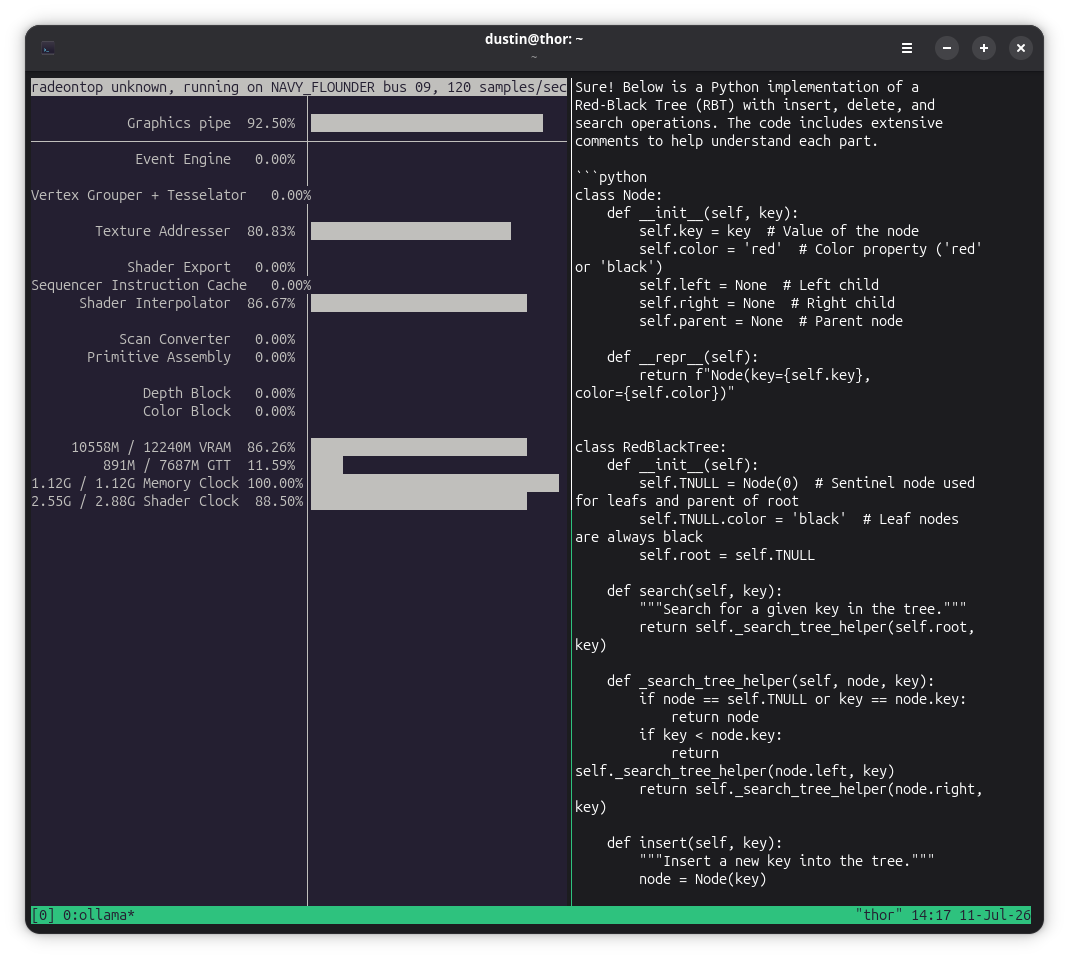
To verify the GPU compute, I used radeontop. Open it in one terminal like so:
radeontopThen, in a second terminal, fire off a prompt long enough to sustain load for several seconds:
ollama run qwen2.5-coder:14b-instruct-q4_K_M \
  "write a detailed, heavily commented python implementation of a red-black tree with insert, delete, and search"
A tmux tip: split the terminal (
Ctrl-b %), runradeontopon the left and yourollama runon the right, and you can literally watch the GPU spike as it "thinks." It's oddly satisfying.
Now watch radeontop while tokens are streaming. What you're looking for:
| Metric | Idle (between generations) | Active (mid-generation) |
|---|---|---|
| Graphics pipe | ~1–2% | jumps high (~93% on mine) |
| Shader Clock | ~0.4% | climbs toward max (~90%) |
| VRAM | ~10.3 / 12.2 GB | same (model stays resident) |
The signal is the transition: idle → active → idle, synced to token output.
Note: Watch Graphics pipe and Shader Clock, not VRAM. The weights can be in VRAM while the math runs on the CPU. You have to watch during streaming. The compute drops to zero as soon as generation ends.
On the VRAM numbers: Ollama reports usable VRAM in GiB (it logged ~11.6 GiB available), while
radeontopreads out in GB using its own accounting. The two don't line up exactly.
On my box, Graphics pipe hit ~93% and Shader Clock ~90% during generation, then fell to 0% and ~0.11% after. That confirms GPU inference over Vulkan. If your compute stays flat while tokens are streaming, that indicates CPU fallback, so you'll need to do some debugging.
Step 4: The context-window decision (8K, on purpose)
Ollama picks a default context length for you, but I wanted to set it explicitly because context costs VRAM. A bigger context window means a bigger KV cache sitting in memory alongside the weights. On a 12 GB card, that budget is tight, so I capped the default served context at 8K, which gives ~10.3 GB resident with headroom to spare (even though Qwen2.5-Coder's native context is 32K).
I set it with a systemd drop-in, so I'm not editing Ollama's packaged unit file:
sudo mkdir -p /etc/systemd/system/ollama.service.d
sudo tee /etc/systemd/system/ollama.service.d/override.conf >/dev/null <<'EOF'
[Service]
Environment="OLLAMA_CONTEXT_LENGTH=8192"
EOF

sudo systemctl daemon-reload
sudo systemctl restart ollama
Verify it took:
systemctl show ollama -p Environment --no-pager # echoes OLLAMA_CONTEXT_LENGTH=81928K is a fine default for most coding prompts. If a specific task needs more, you don't have to change the service. You can override context per request:
curl http://localhost:11434/api/generate -d '{
  "model": "qwen2.5-coder:14b-instruct-q4_K_M",
  "prompt": "...",
  "stream": false,
  "options": { "num_ctx": 16384, "temperature": 0.2 }
}'
Raise num_ctx for the one long-context call that needs it. Don't leave it high
globally or you'll pay the VRAM tax on every request.
A couple of other handy per-request knobs:
temperature0.1–0.3 for deterministic code, higher for brainstormingkeep_alivepass-1to pin the model resident when you're about to hammer it (by default it unloads after 5 idle minutes and the next request eats a few-second reload).
Ollama also exposes an OpenAI-compatible API at http://localhost:11434/v1.
Any tool compatible with "OpenAI API, custom base
URL" can point at it locally with a dummy key. The server is stateless. It takes
the full message history on every call, so your client holds the conversation.
I also set up zram as a compressed-RAM cushion for the orchestration I plan to stack on top, since 16 GB is tight.
TL;DR
The cliffnotes on setting up your own self-hosted LLM server:
- Install an LTS Linux (Ubuntu 24.04/26.04) with a recent kernel for your GPU.
- Check your GPU's compute support. AMD: is your
gfxtarget on ROCm's list? If not (e.g. RX 6700-series gfx1031), plan on Vulkan:sudo apt install mesa-vulkan-drivers vulkan-tools radeontop. - Install Ollama:
curl -fsSL https://ollama.com/install.sh | sh. - Pull a model that fits your VRAM. 12 GB → a 14B at Q4_K_M (~10 GB). Don't try to cram a 30B into 12 GB.
- Verify GPU compute with
radeontopduring generation. Watch Graphics pipe / Shader Clock, not VRAM. Discovery ≠ compute. - Set the context ceiling with a systemd drop-in
(
OLLAMA_CONTEXT_LENGTH=8192) to keep the KV cache inside your VRAM budget; override per request withnum_ctxwhen needed.
Next steps
This box is the worker tier of a two-tier setup: the easy work runs here, the hard work escalates to a frontier model. Reaching it from anywhere without exposing anything to the internet is the next post. Whether a quantized 14B is actually good enough to trust is the one after.
Final notes
For now, I am happy to have my own free model running on a mid-level card that I didn't have to pay 2026 prices for. You don't need the latest, most expensive hardware to run a real and useful model at home. All you need is something with enough VRAM. It doesn't even have to be on AMD's supported list.
Go and check out what your idle GPU could be doing instead.
//Comments